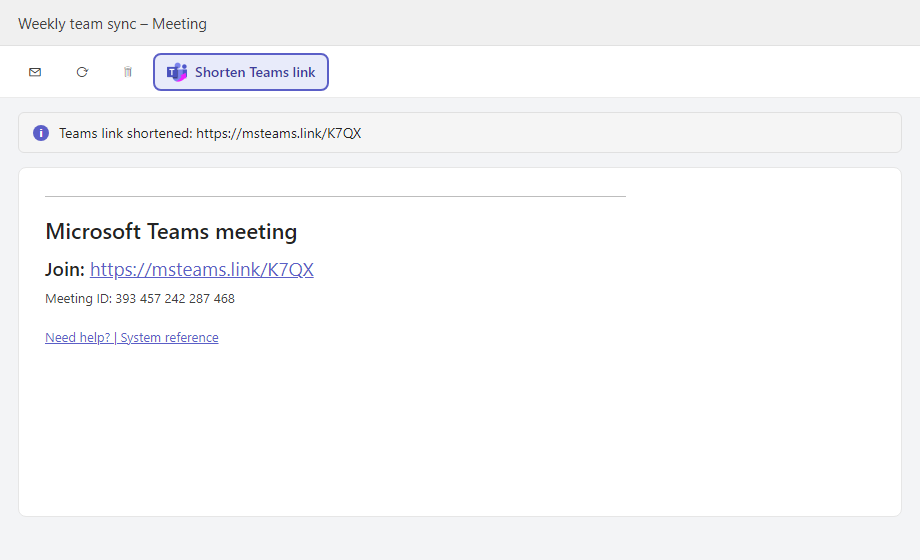
In short: open the meeting from your Outlook calendar, right-click the link after Join: in the “Microsoft Teams meeting” block and choose Copy link. The link only appears once the meeting has been saved. Then shorten it with MSTeams.link to share it anywhere.
You scheduled a Teams meeting in Outlook and now you need its link: to paste it in a chat, send it by SMS or print it. The link is there, but Outlook hides it behind a “Join” button and a block of text at the bottom of the invitation. Here is exactly where to find it in each version of Outlook, and the two traps that catch most people.
Where the Teams link lives in an Outlook invitation
When a meeting has Teams meeting turned on, Outlook adds a block at the bottom of the invitation:
- Microsoft Teams meeting as a title;
- Join: followed by the meeting link, usually in the form
https://teams.microsoft.com/meet/123456789?p=AbCdEf; - the Meeting ID and Passcode, to join by typing them in Teams;
- Need help? | System reference: “System reference” is the long, technical version of the link (
…/l/meetup-join/19%3ameeting_…), used by meeting-room devices.
The link to share is the one after Join:. Both open the same meeting.
In Outlook on the web and the new Outlook
- Open Calendar and double-click the meeting to open it (a single click only shows a preview).
- Scroll down to the Microsoft Teams meeting block at the bottom of the description.
- Right-click the link after Join: and choose Copy link.
The Join button at the top of the meeting opens the meeting, it does not copy anything: use the link in the description.
In classic Outlook for Windows
- Open the meeting from the Calendar.
- In the body of the invitation, find the Microsoft Teams meeting block.
- Right-click the join link and choose Copy Hyperlink.
Trap 1: the link isn’t there yet
On a brand-new meeting, turning on Teams meeting does not show the link right away: Outlook writes the Teams block into the invitation when the meeting is saved or sent. If the block is missing, click Save, then open the meeting again from the calendar: the link is there.
Trap 2: the copied link starts with “safelinks”
If you copy the link from an invitation you received by email, you may get something like https://eur01.safelinks.protection.outlook.com/?url=…. That is Microsoft Defender’s Safe Links, which rewrites links in incoming emails to scan them when clicked. To get the real Teams link, copy it from the meeting in your calendar rather than from the email, or use our Outlook add-in, which finds the original link for you.
Make the link easy to share
Even the newer Teams links are long and the technical one runs past 200 characters. With MSTeams.link, paste the link you just copied and you instantly get:
- a short link like
msteams.link/AB12, easy to read, type and dictate; - a QR code to join from a phone (see how to create a QR code for a Teams meeting);
- a link that opens the same Teams meeting.
To skip the copy-paste entirely, the MSTeams.link add-in for Outlook replaces the long link directly in your invitation, and the Chrome extension detects the link in Outlook web and Teams in one click.
Frequently asked questions
Is the link the same for every participant?
Yes. A Teams meeting has a single join link: everyone you send it to joins the same meeting, possibly through the lobby depending on the organizer’s settings.
Can I copy the link from Teams instead of Outlook?
Yes. Open the meeting from the Teams calendar: its details contain the same block, and you copy the link the same way.
Does the short link change the meeting?
No. The short link simply points to the original Teams link; the meeting, its ID and its passcode stay exactly the same. More in how to share a Teams meeting link.
Bottom line: the Teams link is in the “Microsoft Teams meeting” block of the saved meeting; copy it with a right-click, then shorten it to share it cleanly. Create your short link for free →
Official source: Join a meeting in Microsoft Teams (Microsoft Support)